
Every site, over HTTPS.
HTTPSNAP asks Safari to load the secure version of every request it can: the old bookmarks, the addresses you type yourself, and the scripts, images and fonts that are still being pulled over http://.
- No page content read
- No account needed
- Nothing collected
Applied by Safari's own networking layer. The page is never handed to the extension.
Download
Download it — no Xcode involved
HTTPSNAP ships inside a signed Mac app. Download it, open it once and switch it on in Safari: none of this needs a developer account or developer tools on your side.
Signed and notarized by Apple, so macOS opens it without a security warning. Needs macOS with Safari 16.4 or later.
- 01
Download it and open it once
Drag the HTTPSNAP app into Applications and open it. Safari registers the extension as soon as the app runs — nothing to build, no developer tools.
- 02
Tick it in Safari
In Safari → Settings → Extensions, tick HTTPSNAP and leave site access on Allow on every website.
- 03
Nothing to configure
No account and no settings file: the rules travel inside the app and start working the moment the extension is switched on.
Why it still matters
Safari secures a lot on its own. This covers the rest.
Modern Safari tries HTTPS first on many navigations, but the insecure path still exists for exactly the requests people forget about.
Links that never got upgraded
Bookmarks, old articles and forum posts still point at http:// addresses. Safari upgrades many of them on its own, but not all, and not consistently.
Addresses you type yourself
A typed address can still be fetched over http:// on hosts that continue to offer the insecure version alongside the secure one.
Mixed embedded content
A page can be loaded over HTTPS and still pull a script, image or font over http://, which is exactly where the tampering happens.
How it works
Three steps, about five minutes
The extension is declarative, so there is nothing to build and nothing to configure beyond switching it on.
- 01
Download it and open it once
Drag HTTPSNAP into Applications and open it. Opening the app once is what registers the extension with Safari — no developer tools, no Apple Developer account, no cost.
- 02
Switch it on and allow site access
In Safari → Settings → Extensions, tick HTTPSNAP and set site access to Allow on every website, or leave it on Ask and approve sites yourself.
- 03
Browse as usual
Open an http:// address and confirm you land on https://. Click the toolbar button to move between Upgrade and Force whenever a site needs the other mode.
Gallery
What it looks like at each step
Real captures from Safari, plus the two views that explain what the extension does with a request once it is switched on.

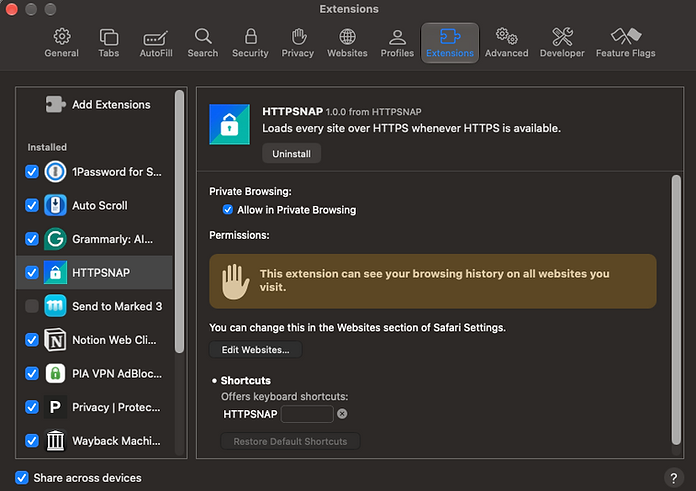
Switched on in Safari
The real settings pane: HTTPSNAP ticked and set to Allow on every website. Safari's permission line is its own wording for the host access a declarative rule needs, so no page content is ever read.

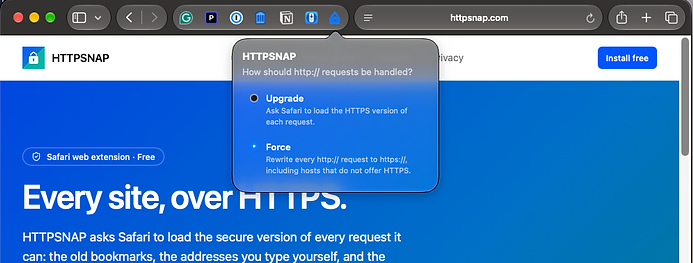
Upgrade or Force
The real toolbar popup, open over this site. Upgrade asks Safari to load the HTTPS version of each request; Force rewrites every http:// URL outright, including hosts that never offered HTTPS.
Typed addresses land secure
Type an address with no scheme at all and the request still leaves over https://, because the rule matches the request rather than the page.
The same rules on iPhone and iPad
The identical declarative rule set runs in Safari on iOS, so the padlock follows you off the Mac.
Two modes
Upgrade by default. Force when you want it.
Both modes are declarative rule sets. The toolbar popup decides which one Safari has active.
Upgrade
Asks Safari to load the HTTPS version of each request. This is the purpose-built upgrade action, and the sensible everyday choice.
- Applies to every request type, not just page loads
- Hosts that serve only HTTP fail rather than fall back
- Nothing to configure
Force
Rewrites every http:// URL to https:// outright. Aggressive by design, for the sites you know are safe and want pinned to the secure version.
- Rewrites the address before the request leaves
- Hosts without HTTPS stop loading entirely
- Switched on from the toolbar popup
A rule cannot say "try HTTPS, and if that fails load the insecure page". That fallback logic lives inside Safari, not inside extensions, which is why a site that only speaks HTTP behaves differently from one that does not.
Under the hood
Declarative rules, not page access
Every request type is covered, and the extension never sees any of them.
Matched in Safari's networking layer
The extension declares a rule set and Safari applies it. The extension is never handed your page, and no request data leaves your Mac.
No content script, no background script
There is nothing running inside the pages you visit and nothing running alongside them. That is the whole permissions story.
A privacy manifest with nothing in it
No tracking domains, no collected data types, no required-reason APIs. Nothing to opt out of, because nothing is collected.
Two rule sets, one switch
The everyday rule set ships enabled and the aggressive one ships off. The toolbar popup swaps which one is active at runtime.
rules.jsonEnabled{
"id": 1,
"priority": 1,
"action": { "type": "upgradeScheme" },
"condition": {
"urlFilter": "|http://",
"resourceTypes": ["main_frame", "sub_frame",
"script", "stylesheet", "image", "font",
"media", "xmlhttprequest", "websocket"]
}
}Questions
Straight answers, including the limits
Stop browsing the insecure web.
Save the files, add the folder to Safari, switch it on. Five minutes, no account, no cost.